
Loading workspace...

Kling Video Prompts Guide and Kling AI Generator

Build Kling Video Prompts around a subject, an action, and a deliberate camera choice. Browse examples or generate three directions from your idea, then use this Kling 3.0 Prompt Guide to prepare a focused video brief.

Explore Kling Video Prompts by Shot Type

Find Kling Video Prompts for a tracking shot, a product reveal, a character moment, or a short conversation. Adapt these Kling AI Prompts to your subject and choose the motion that gives the scene its purpose.

No prompts match your search.

How to Build Useful Kling Video Prompts

Start with the shot you need, choose a suitable generation mode, and refine the result against your brief. Kling Video Prompts become easier to evaluate when subject movement, camera movement, and scene continuity have separate instructions.

1

1. Choose Kling Video Prompts

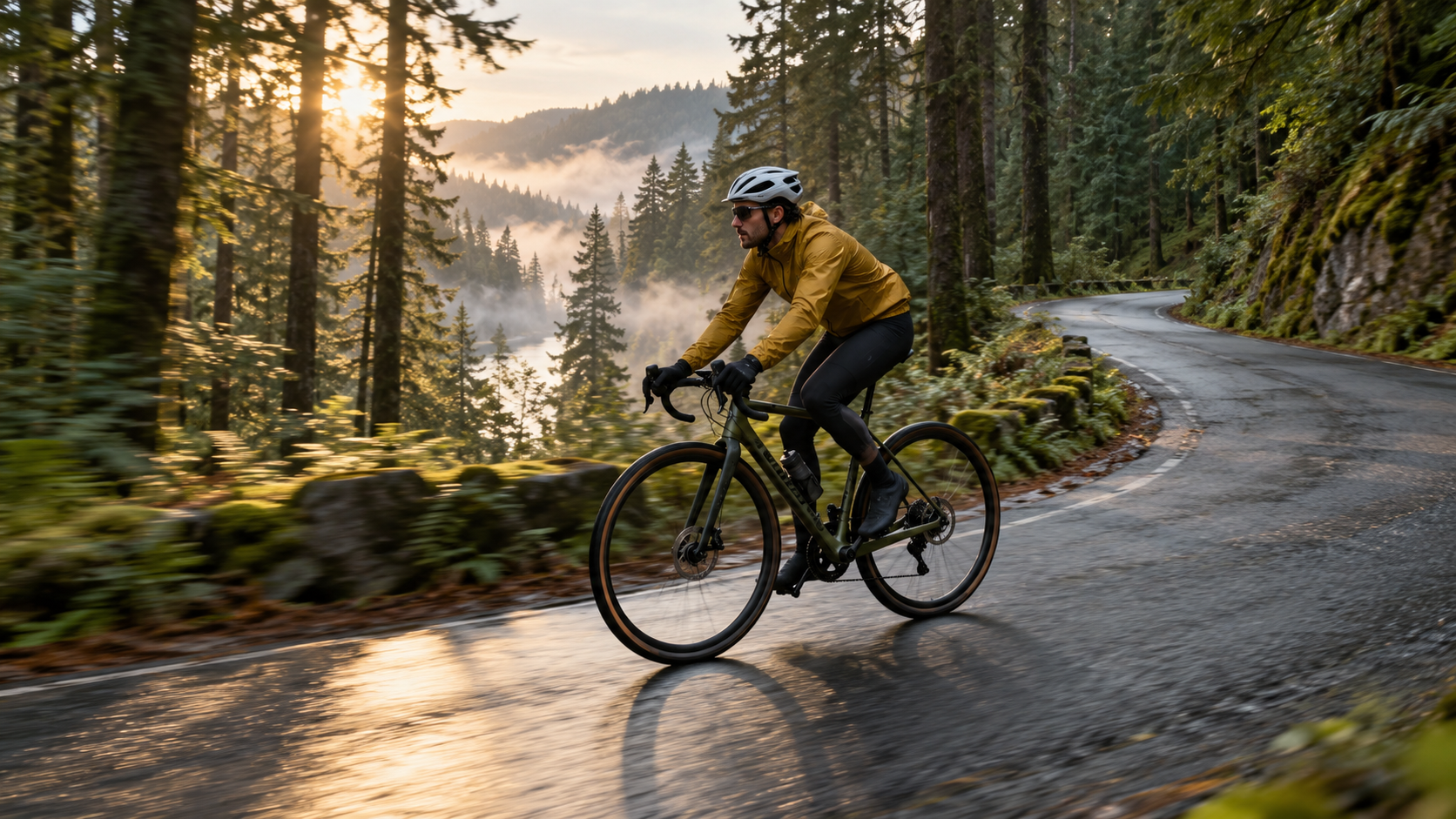
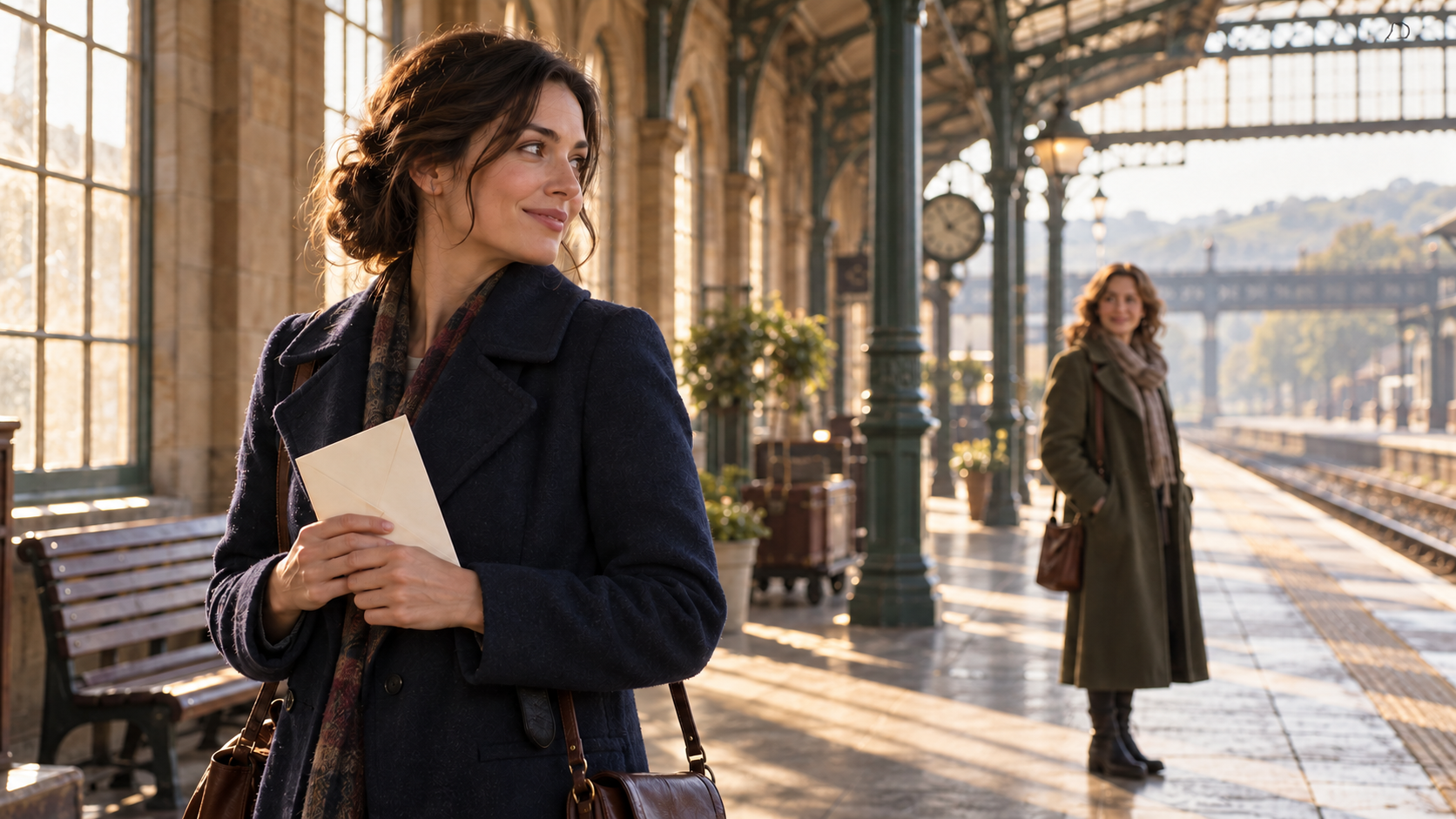
Choose a moment: a cyclist rounds a bend, a bottle catches the light, or a character notices someone across a platform. Browse Kling Video Prompts for a similar scene, or enter your own idea to generate three alternatives. Compare how each version frames the action, then choose one to customize. Adapt Kling AI Prompts by replacing the subject, setting, and movement.

2

2. Customize Kling Video Prompts

Replace the subject, location, and lighting with your own details. For Kling Video Prompts based on an image, describe what should move and what should remain unchanged. For text input, establish the scene first. Use this Kling 3.0 Prompt Guide to distinguish camera movement from subject movement: say whether the camera approaches a seated person or the person walks toward the camera.

3

3. Test and Refine Kling Video Prompts

Copy your chosen brief into Kling and select the settings for your shot. Watch the full clip, checking whether the action finishes, the framing stays useful, and the subject remains recognizable. Revise Kling Video Prompts to address the most noticeable problem first. Save each version of your Kling Video Prompts so you can compare the effect of a different camera instruction or action.

Write Kling Video Prompts with Clear Creative Direction

Decide what happens in the shot, how the camera captures it, and where the action ends. Build Kling Video Prompts around these choices so you can compare each rendered clip with the scene you intended.

Kling Video Prompts Start with an Action

Kling Video Prompts Start with an Action

Start Kling Video Prompts with something that happens. A person stops walking and turns toward a sound; a sail fills as a boat leaves the harbor. Add the setting and look. This order keeps the clip centered on an event. Kling AI Prompts can include rich detail, but the audience should still understand the main action without needing a long explanation.

Separate the Camera from the Subject

A camera tracking beside a runner differs from a fixed view watching the runner pass. Say which one you want. Kling Video Prompts should identify direction, framing, and a manageable camera move where these affect the story. If the result feels aimless, simplify the camera instruction first. The strongest Kling Video Prompts often make one viewpoint easy to follow throughout the action.

Write Motion That Fits the Clip

Give the scene a plausible beginning and ending. A cup can be lifted and set down; a full journey usually needs several shots. The Kling 3.0 Prompt Guide recommends matching the action to your chosen duration. Use Kling Video Prompts to describe the important beats in order, leaving space for the movement to finish rather than compressing unrelated events into every second.

Make Three Variations Different

Compare a wide establishing view, a closer character view, and a detail shot for one concept. Keep the central action stable so you can judge what each viewpoint adds. Three Kling Video Prompts with different adjectives offer little direction. Three Kling Video Prompts with distinct framing or pacing help you decide whether the scene needs context, emotion, or a closer look at the object.

Protect the Reference Details

For a shot based on an image, identify the features to preserve: a bottle’s silhouette, a coat’s color, or a character’s hairstyle. Choose movement that follows naturally from the starting pose. Kling Video Prompts can name these details without describing the entire image again. Review the result against your Kling AI Prompts, checking for changes to faces, product proportions, and clothing as the scene moves.

Match the Brief to the Selected Mode

Match the Brief to the Selected Mode

Kling VIDEO 3.0 supports text and image inputs, native audio, and multi-shot workflows. The controls you can use depend on the selected workflow. Keep Kling Video Prompts aligned with those controls: choose a single shot for a continuous action, or plan separate shots when the scene needs a cut. This Kling 3.0 Prompt Guide helps organize the brief before generation.

Four Ways to Structure Kling Video Prompts

Different inputs call for different instructions. Use Kling Video Prompts to establish a scene from text, animate a reference, plan a sequence, or direct a speaking character. Each approach starts with a clear visual purpose.

How Creators Use Kling Video Prompts

From product films to character scenes, creators use Kling Video Prompts to organize action, framing, and sound. Explore how a clearer brief fits into different creative workflows and gives each revision a more specific direction.

MB

I use Kling Video Prompts to plan product shots. Separating the camera movement from the object’s action helps me write a brief I can actually evaluate.

Maya Bennett
Maya Bennett
Product Content Designer
DP

The three directions give me something concrete to compare. With Kling Video Prompts, I can explore different openings without losing the idea behind the clip.

Daniel Park
Daniel Park
Social Media Producer
SR

I used to pack too much into Kling Video Prompts. The Kling 3.0 Prompt Guide helped me separate the shots and give each cut a reason.

Sofia Ramirez
Sofia Ramirez
Independent Filmmaker
OH

I like starting with a location and deciding how to reveal it. Kling Video Prompts help me choose a camera move before adding too much detail.

Oliver Hayes
Oliver Hayes
Travel Content Creator
CM

When a clip misses the brief, I need a specific next step. Revising Kling Video Prompts one instruction at a time makes the comparison easier to follow.

Chloe Martin
Chloe Martin
Motion Designer
EB

I usually know the mood I want, but the camera direction takes longer. Kling Video Prompts give me a starting point I can discuss with my team and refine.

Ethan Brooks
Ethan Brooks
Creative Director

Kling Video Prompts FAQs

Get practical answers about Kling Video Prompts, reference images, camera direction, dialogue, and revision. The guide explains how to prepare a brief, choose a suitable workflow, and assess the result before using a clip in a project.

Include a recognizable subject, a setting, an action, and a camera viewpoint. Add lighting or sound when it changes the intended scene. Kling Video Prompts also benefit from a clear endpoint: tell the model where the action should finish. For a simple shot, a few precise sentences may be enough. Add detail to resolve ambiguity, rather than stacking cinematic adjectives that do not describe visible decisions.

Direct the moment.

Write Kling Video Prompts with a Clearer Direction

Turn your next scene idea into Kling Video Prompts you can compare and refine. Browse a useful example, generate three alternatives, and choose the subject action, camera movement, and ending that best communicate your intended moment.

Three directions from one scene idea
Adaptable Kling Video Prompts
Guidance for motion, references, and sound